How to Make a Minecraft YouTube Banner (Size and Safe Area)
CreativeStar · 7 min read
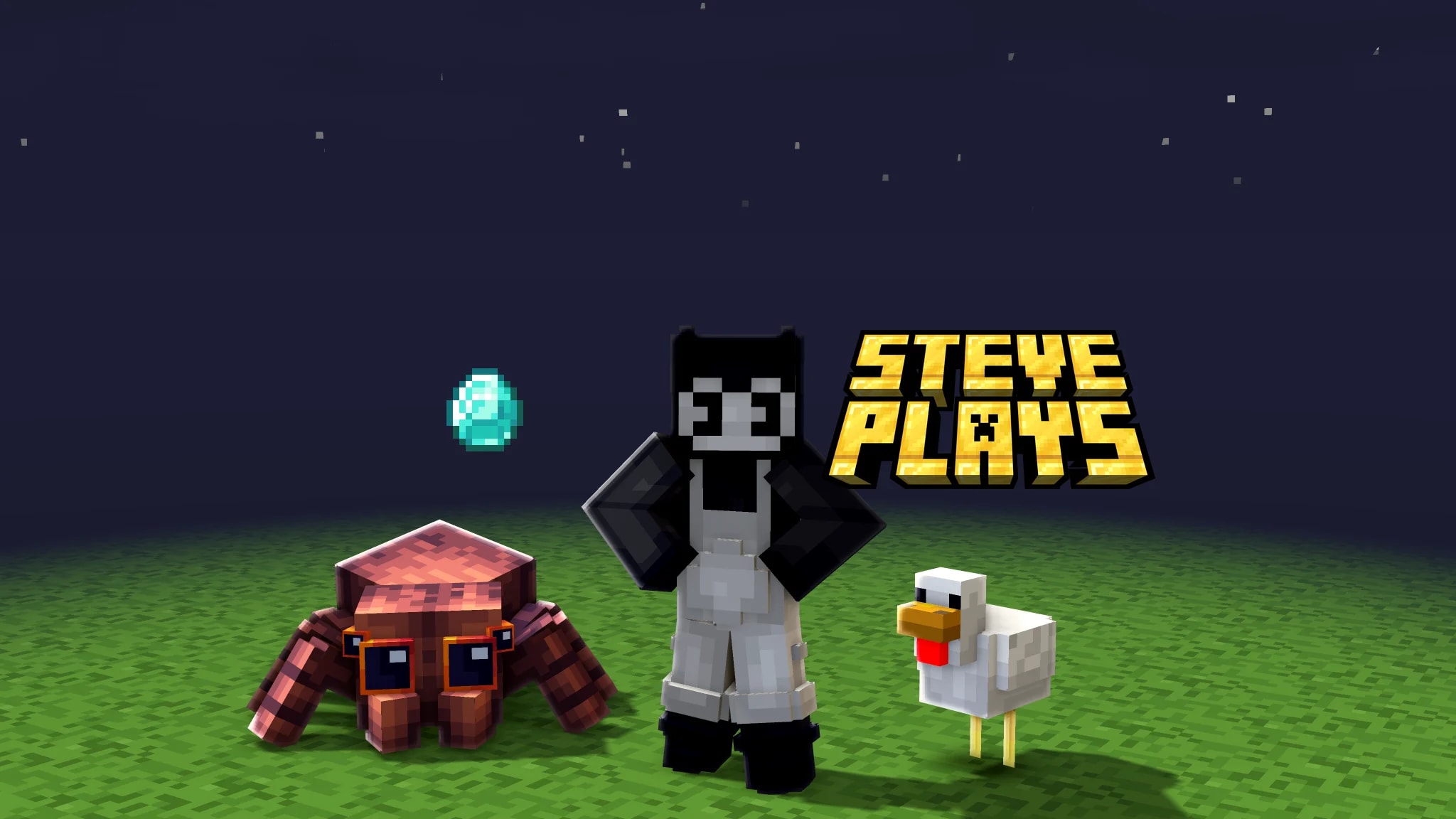
A Minecraft YouTube banner is a 16:9 image of 2048 x 1152 pixels, 6 MB at most, but only the centered strip of 1235 x 338 pixels shows on every device. Put the face of your skin and your channel name inside that strip. Everything outside it is background that phones and computers will crop.
In this guide you pose your own skin in 3D, make your channel name in 3D Minecraft letters and put it all together in your browser, with no desktop image software. It is written for creators starting a Minecraft channel and for small channels redoing their channel art. One clarification: this is the image at the top of your YouTube channel, not the banner you craft with a loom in the game.
The numbers, from YouTube Help:
Upload size: 2048 x 1152 px (recommended and minimum).
Aspect ratio: 16:9.
Max file size: 6 MB.
Safe area for text and logos: 1235 x 338 px, centered.
Each device shows a different slice of the same image:
TV: the whole 2048 x 1152 image.
Desktop: a wide horizontal band across the middle.
Phone: roughly the safe area, nothing more.
The practical rule: the safe area is about 60% of the width and under 30% of the height. Anything above or below the middle strip is decoration that will be cut off. Old 2560 x 1440 templates still work because they share the 16:9 ratio, but aim for 2048 x 1152 and ignore the old 1546 x 423 safe area some of them quote.
Pose your skin in 3D
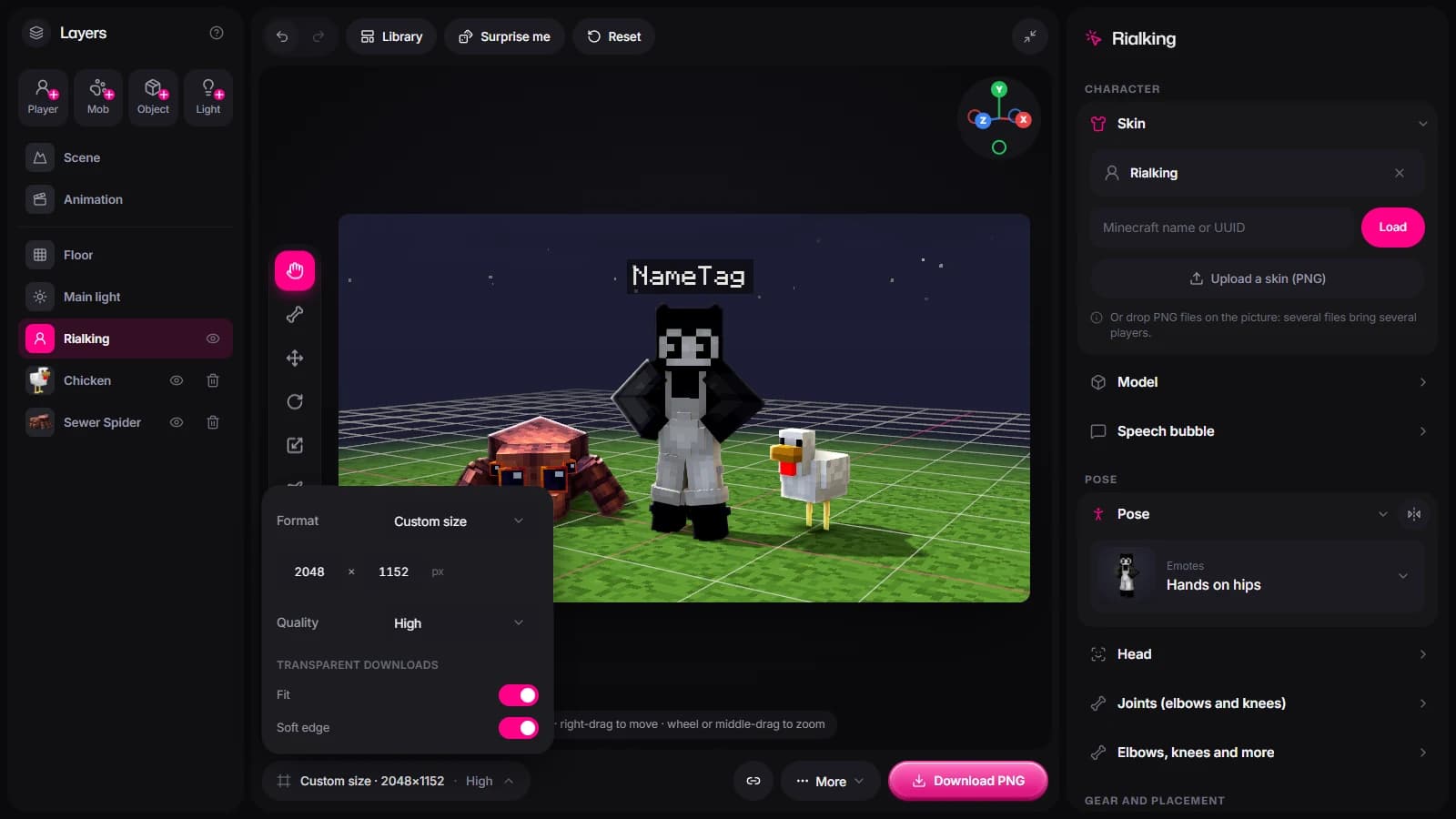
Open Render Studio and load your skin with your Minecraft username. Pick a pose from the library: on a wide, short banner, open arms or a pointing pose fill the strip far better than standing straight, which leaves empty space on both sides. You can bend the elbows and knees to fine-tune it. If you only need a still full-body render, the skin render tool gives you one as a transparent PNG.
Turn on studio lighting, add an effect if it suits your channel and set a sky and a floor. For a duo or group channel, add up to six players. Keep the character in the middle of the frame, because phones crop the sides. Under Format, pick Custom size and enter 2048 x 1152, so the render comes out at the exact YouTube banner size. Skip the Banner format: it is 1500 x 500, not 16:9.
Open the 3D title generator, type your channel name, pick a block texture and download the transparent PNG, which is free. High-contrast textures like gold, diamond or grass stay readable at phone size, while busy textures blur into noise. Keep the name short or split it over two lines. The animated, spinning version needs Unlimited tools and is meant for intros, not banners; if you want the plain lettering instead, our blog has a guide to the Minecraft font.
Grab one or two item or block icons as PNGs: a diamond, a sword, TNT, a creeper head, whatever fits your channel's theme. Use them to frame the name. Two at most, inside the safe area or right on its edge, so they do not compete with your name.
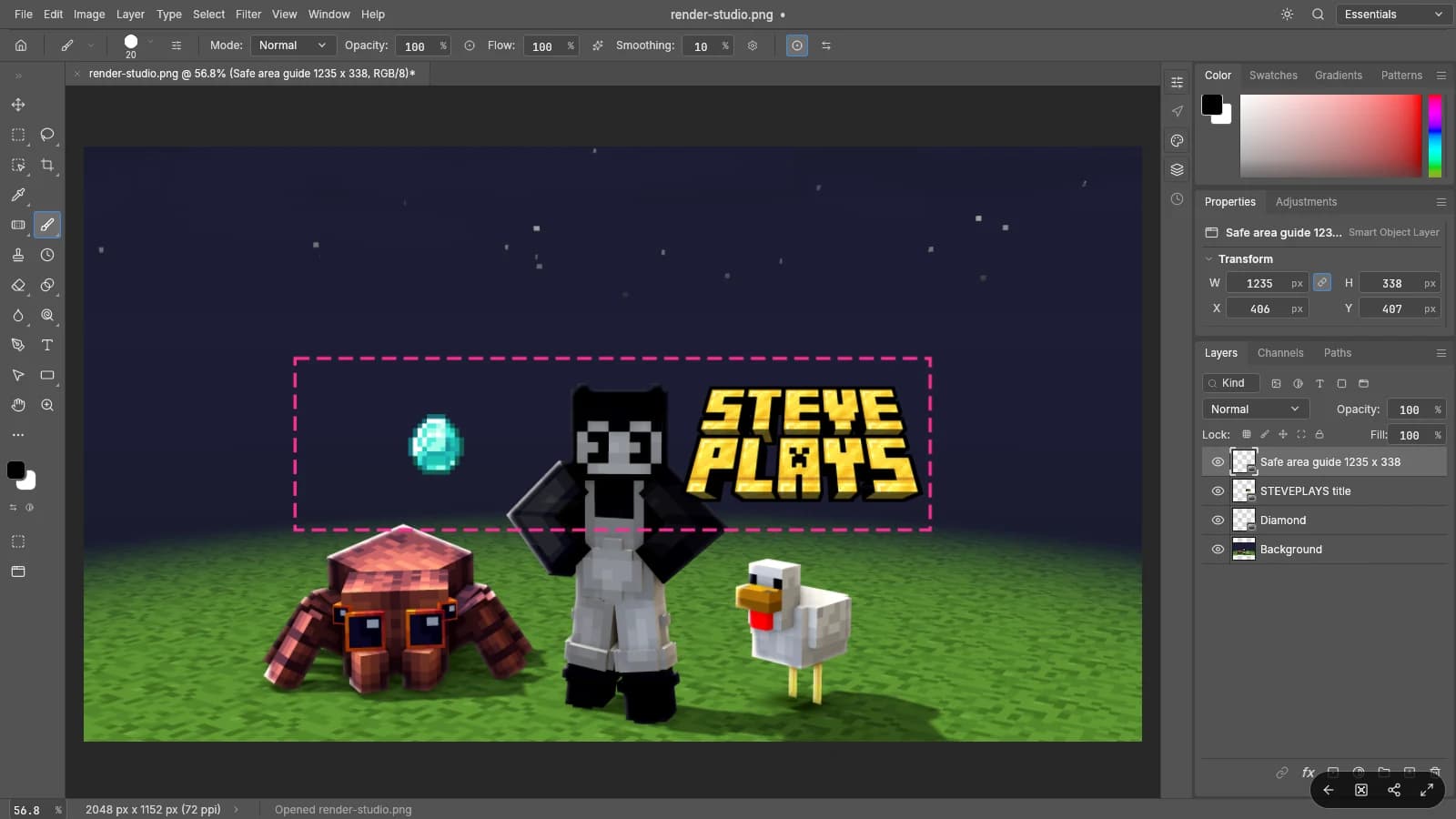
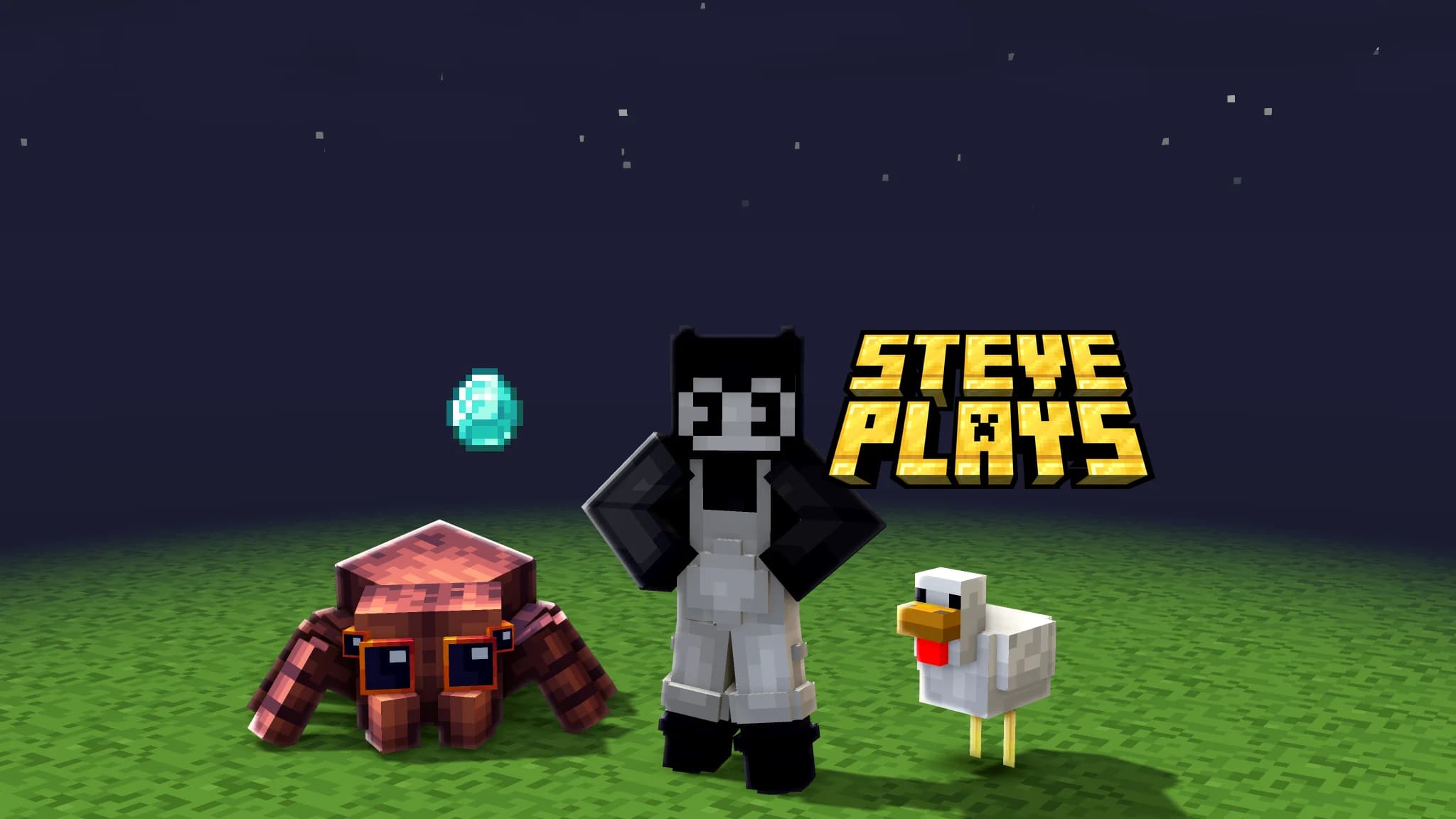
Open PhotoStar and set up a 2048 x 1152 canvas. Place the Render Studio export as the bottom layer, then the title PNG and the icons on top, each on its own layer. Draw a 1235 x 338 rectangle as a guide layer, 406 px from the left edge and 407 px from the top so it sits dead center, and keep the face of your skin and the whole name inside it. Delete the guide before you export.
Export as JPG or PNG under 6 MB. In YouTube Studio, go to Customization > Profile > Banner image > Upload. Before you publish, check the TV, desktop and mobile preview YouTube shows you. If the name is cut off on the mobile preview, go back to PhotoStar and move it toward the center.
Match your profile picture to the banner. Your channel icon sits right next to the banner, so use the same skin and the same colors. The avatar maker turns that skin into a profile picture with different styles, a backdrop and a round crop, so the two read as one brand.
The same skin works for your thumbnails too. If you are setting up the rest of your channel, our blog has a guide to editing Minecraft videos.
Common mistakes with Minecraft YouTube banners
The name at the top or bottom. It looks fine on the full canvas and disappears on phones and desktop. Keep it inside the 1235 x 338 strip.
A thumbnail-sized file. A 1280 x 720 image is below the minimum: YouTube rejects it, or it looks soft on TVs. Always start at 2048 x 1152.
A busy title on a busy background. Detailed block textures turn unreadable at phone size. Pick a plain, high-contrast texture like gold or diamond, or darken the floor or sky behind the name.
The skin cut in half. Placing the render off-center leaves half the character outside what phones show. Keep the face in the middle of the safe area.
Someone else's skin or banner. A downloaded banner or another player's skin is not your branding, and viewers notice. Build it from your own skin and make your name in the title generator.
Write your title now
Your text in the Minecraft logo fonts and textures, in 3D and as a transparent PNG. Free, no watermark.
Upload it at 2048 x 1152 pixels, a 16:9 image of 6 MB or less. That is both YouTube's recommended and minimum size, and it is the same for Minecraft channels as for any other channel.
It is the centered 1235 x 338 pixel strip of the 2048 x 1152 image. It is the only part that shows on every device, so your channel name, logo and the face of your skin must sit inside it.
Make your channel name as a transparent PNG with the title generator, grab item icons, render your skin and assemble everything in PhotoStar on a 2048 x 1152 canvas. The title PNG, the icons and PhotoStar are free, and the skin render tool gives you a free full-body PNG of your skin.
Phones show only about the centered 1235 x 338 pixel strip, so anything above, below or near the sides gets cropped. Move your name and skin toward the center and check the mobile preview in YouTube Studio before publishing.
Yes. Load it by username in Render Studio to pose it in 3D, or get a full-body PNG with the skin render tool, then place it in the middle of the banner. Use your own skin, not another player's, since the banner is your channel's branding.