Minecraft chibi skin: turn your skin into a chibi PFP or GIF
CreativeStar · 6 min read
To make a Minecraft chibi skin of your own character, open our Minecraft Chibi Maker, type your Java username, pick a style, a pose and an animation, and download the result as pixel art, a profile picture, a GIF or a WebM.
One thing up front: this turns your skin into an image or an animation of a big-headed version of your character. It does not make a chibi skin you can wear or upload to Minecraft.
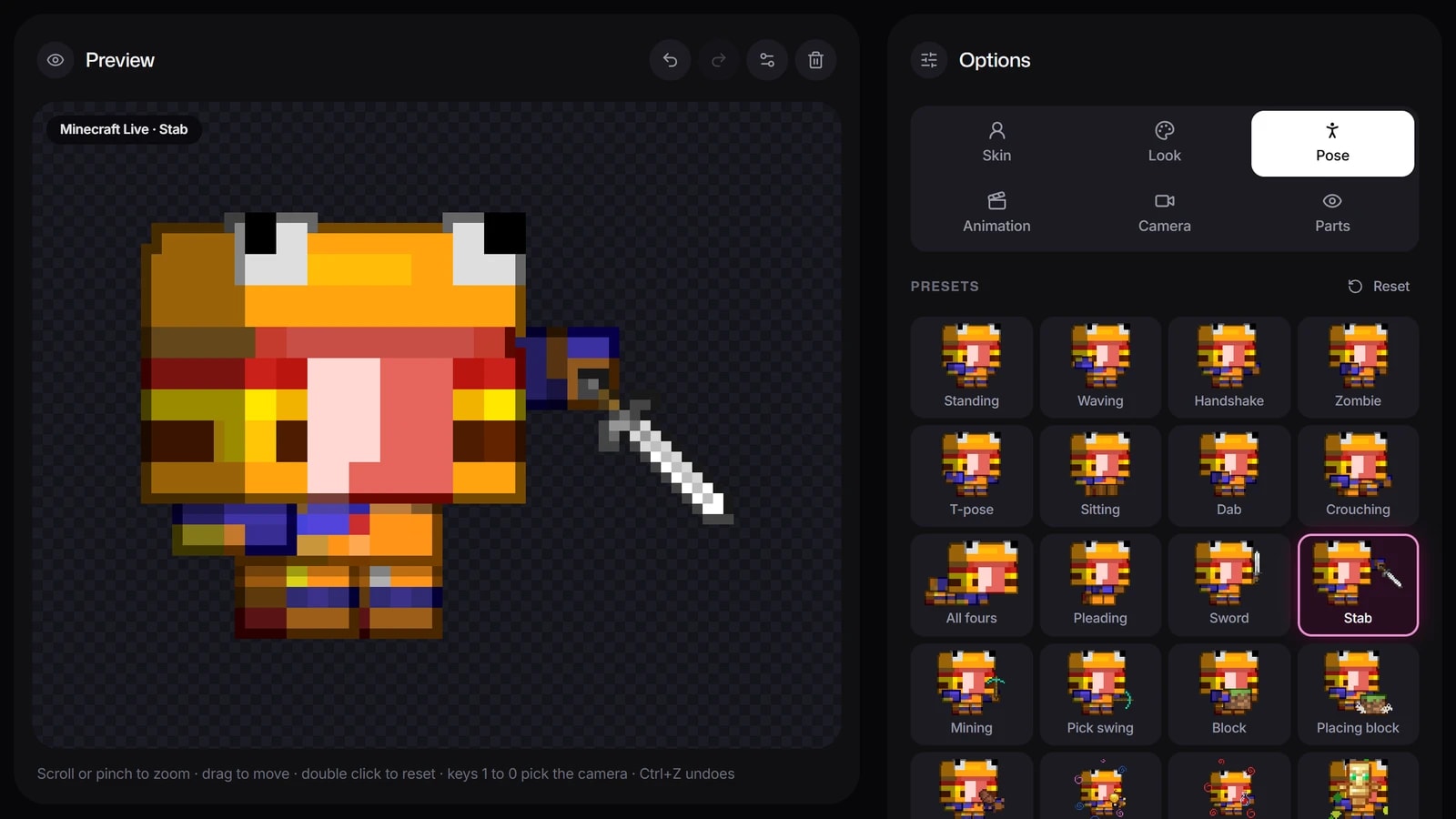
This guide walks through every step with real screenshots of the tool: the 3 styles, the 44 poses, the 57 animations and every way to download it. At the end, how to drop the animated chibi into a Premiere Pro edit as a facecam stand-in or a reaction pop-up. The screenshots use an example skin; yours will look like you.
Open the chibi maker and load your skin
Go to the Minecraft Chibi Maker, type your Java username in the Skin tab and press Load. You can also upload your skin PNG. The chibi shows up in the preview right away, in the default style and pose.
The skin loaded from its Java username, in the default Minecraft Live style.Open the chibi maker
Pick one of the three styles
The style selector sits at the top of that same Skin tab:
Classic: the original 24 × 33 pixel sprite, with a head twice the size of the body and no outline.
Minecraft Live: the chunkier look, a 36 × 42 sprite with a much bigger head and inked outlines.
3D toy: swaps the pixel art for a smooth, softly lit little 3D figure.
For a PFP or a Discord icon, keep the style whose face still reads when it is tiny: Discord shows avatars at about 40 pixels in chat. For a video, where the chibi is bigger on screen, pick the one you like more.
Open the Pose tab: there are 44 poses in a grid, and the one you pick stays highlighted. Below it, Framing crops the chibi to full body, half body, portrait or just the head.
For a profile picture: a neutral standing pose or a wave. The face stays centered and the body does not break the frame.
For a video or a thumbnail: an action pose, where movement is the point.
The Animation tab has 57 clips. Pick one and the chibi goes back to standing and plays it in a loop in the preview, so you can watch it a few times before you export. Picking a pose afterwards stops it.
In the Export panel, the Image tab has three formats, all PNG and all free:
Pixel art: the chibi on its own, enlarged by a whole number so it is never blurred, on a transparent background unless you give it one. Ready for stickers or for layering over another image.
Profile picture: the chibi centered in a frame on your background.
Round avatar: a circular badge with see-through corners, ready for Discord or YouTube.
There are ready-made sizes, such as a 320 Discord sticker or Twitch emotes at 112, 56 and 28.
Size sets how far it is enlarged: here 8 times, 456 × 328 pixels.The pixel art PNG as it comes out, on a transparent background.Open the chibi maker
Export the animation as a GIF, APNG or WebM
The Animation tab of the Export panel downloads the loop in three formats:
GIF: plays almost everywhere, from Discord to forums and chats.
APNG: full color and smooth transparency; it animates in browsers and Discord.
WebM: a small video that keeps the transparency, the best pick for video work and OBS. If your browser cannot record one, the option does not show.
If you make stickers or a game, the Sprite sheet tab packs every clip into one PNG. And if you want a posed 3D scene for a thumbnail instead of a flat chibi, Render Studio does that.
It is almost always a typo in the username or a skin change that just happened. Check what your account serves with the skin render tool and load it again.
You upload it to Minecraft and it does not work
The PNG you download is a picture of your character, not a skin file: it will not work as an in-game skin.
The pixel art looks blurry
You are scaling it past its size. In Premiere, keep Scale at 100 or below, and if it ends up too small, download a bigger size from the Export panel instead of stretching it.
The background comes in black in Premiere
Try the other format (GIF if you used WebM, or the other way round) and put a color matte under it to check the edges.
The loop stutters when you extend it
Do not stretch it with Rate Stretch: duplicate the clip end to end (Alt + drag).
Loved by 10K+ creators
Get 15 free Premiere Pro presets
Join the newsletter and they reach your inbox right away: text, zooms, shakes and transitions ready to drag. No plugins, no watermark.
Stuck on a step?
Ask on our Discord.
The team and the community will help you out. And share the result: we love seeing what you make.
A chibi is a cute, big-headed version of a character, a style that comes from anime and manga. A Minecraft chibi takes your skin and redraws it with an oversized head and a small body, as pixel art or an animation.
No. The chibi maker turns your skin into an image or an animation for profile pictures, stickers and videos. It does not create a skin file you can upload to Minecraft.
Open our Minecraft Chibi Maker, type your username, pick one of the three styles and a pose, then download it as pixel art, a profile picture or a round avatar. The PNGs are free; GIF, APNG and WebM need a free account.
Export it as a GIF, import it with File > Import and place it on a track above your gameplay. Scale it down, move it to a corner and give it a pop-in preset for the entrance.
Pick GIF to share it in Discord, forums or chats, since it plays almost everywhere. Pick WebM for video work: it is usually smaller and smoother, but test that your editor imports it first.